GitHub Actions Self-Hosted Runner on Ubuntu (Step by Step)
A GitHub Actions self-hosted runner is GitHub’s free runner program running on a machine you control. You download it, register it with a token that lasts one hour, run it as a background service, and send jobs to it with runs-on labels. Your workflows then run on your hardware instead of GitHub’s.
This guide does all of that on a fresh Ubuntu machine in eleven steps, then runs a real Django CI pipeline on it, with PostgreSQL, three Python versions and a Docker smoke test. It ends with the security rules that keep the runner from becoming a free computer for strangers.
Every command and every line of output below ran on October 25, 2026, on an Ubuntu 26.04.1 LTS virtual machine with runner version 2.338.1. The workflows live in a private demo repo, and you’ll see why it has to be private in Step 1.
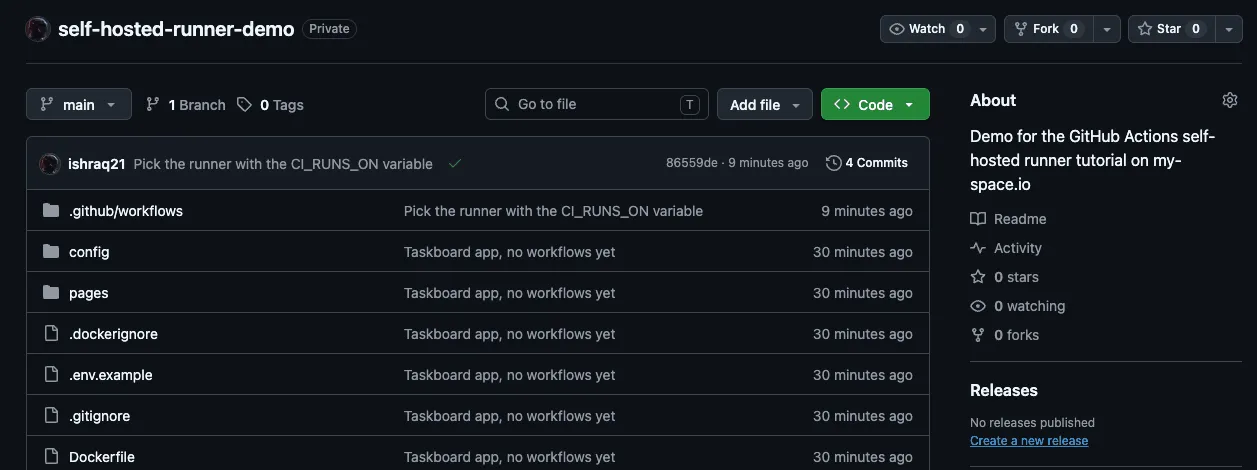
The demo repo. It’s the same Taskboard app as my GitHub workflows guide, moved into a private repository.
What is a GitHub Actions self-hosted runner?
A runner is the machine a GitHub Actions job runs on. GitHub’s hosted runners are fresh virtual machines that get thrown away after each job. A self-hosted runner is a machine you own, such as a spare PC, a cloud VM, a home server or a Raspberry Pi, with GitHub’s runner program installed on it.
The runner program connects out to GitHub over HTTPS on port 443 and keeps asking whether there’s a job for it. You don’t open any ports on your router or firewall, because GitHub never connects in. The jobs and their logs travel over the connection the runner opened.
Jobs find a runner through labels. A label is a tag on the runner, such as self-hosted, Linux, ARM64 or one you make up. A job’s runs-on line lists labels, and GitHub sends it to an idle runner that has all of them.
Should you use a self-hosted runner?
Use one when GitHub’s machines are the wrong fit, not because “free” sounds nice. Here’s the trade, using facts from GitHub’s runner docs.
| GitHub-hosted runner | Self-hosted runner | |
|---|---|---|
| Setup | None | You install, register and run it |
| Machine state | Brand new for every job | Keeps files and tools between jobs |
| Maintenance | GitHub patches it | You patch the OS and every tool |
| Cost | Free on public repos, 2,000 minutes a month on private repos with GitHub Free | Free to use with GitHub Actions, you pay for the machine |
| Hardware | Fixed sizes | Whatever you own, ARM and GPUs included |
| Network | Public internet only | Can reach machines on your network |
| Risk | Thrown away after each job | Runs the job’s code on your machine |
I keep a self-hosted runner inside Windows Subsystem for Linux and switch a private project to it when that project’s free minutes run out for the month. It works, and it’s noticeably slower than GitHub’s machines.
Good reasons to run one are running out of minutes on private repos, heavy builds that love a warm cache, jobs that need to reach something on your own network, and hardware GitHub doesn’t rent. Bad reasons are public repositories, which Step 1 covers, and a laptop that sleeps. A laptop that sleeps makes a runner that sleeps.
When a private repo’s included minutes are gone and there’s no budget for more, GitHub won’t start hosted jobs at all. The demo repo hit this while I was testing, and every job failed in two seconds with this annotation.
The job was not started because recent account payments have failed or your spending limit needs to be increased. Please check the 'Billing & plans' section in your settingsThat’s the moment a self-hosted fallback earns its keep. Step 9 makes switching to it a one-line change.
What do you need before you start?
- An Ubuntu machine. GitHub supports Ubuntu 20.04 or later on x64, ARM64 and ARM32. I used an Ubuntu 26.04.1 LTS virtual machine with 4 CPUs and 6 GB of memory, created on a Mac with Lima in plain mode, so it couldn’t see any of the Mac’s files. A spare PC, a cloud VM or WSL work the same way.
- An admin account with sudo on that machine. The runner itself will run as a separate user with no sudo.
- A private GitHub repository you own, or one where you’re an admin. Organization repos need an owner or a repo admin.
- Outbound HTTPS. The machine must reach
github.com,api.github.comand*.actions.githubusercontent.comon port 443, pluscodeload.github.comto download actions and a few storage hosts for logs, caches and updates. Nothing inbound. A home network already allows all of that. Behind a strict firewall, allow every domain on GitHub’s list. - The GitHub CLI,
gh, on your laptop if you like. It’s optional. The web pages do everything it does here.
For sizing, the runner program itself is tiny. Over four full CI runs, the runner service on my VM peaked at 2.2 GB of memory, so 4 GB is a sensible floor for a Python and Docker project.
The 11 steps at a glance
New to this? Steps 1 to 6 give you a working runner that survives reboots, and you can stop there. Steps 7 to 11 add Docker, real CI, an off switch for GitHub’s runners, security and upkeep.
- Make a private repository for the runner.
- Prepare the Ubuntu machine.
- Download and verify the runner.
- Register the runner with a token.
- Start it and run your first job.
- Run it as a service that survives reboots.
- Install Docker for container jobs.
- Point your real CI at the runner.
- Switch between GitHub’s runners and yours with one variable.
- Lock the runner down.
- Maintain, update and remove the runner.
Step 1. Make a private repository for the runner
Put self-hosted runners on private repositories only. Anyone can fork a public repo and open a pull request that changes a workflow, and that workflow would then run on your machine. GitHub prints the warning right on the setup page of a public repo.
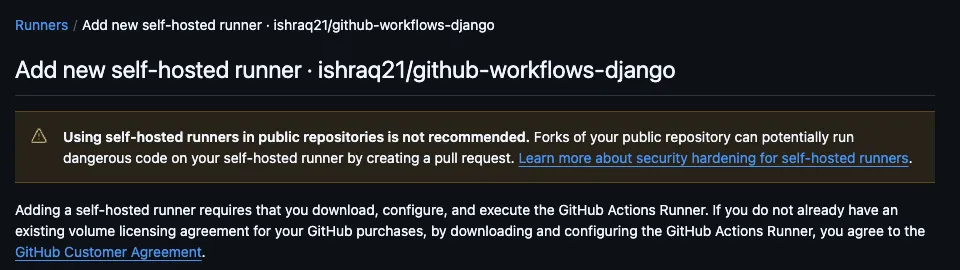
The setup page for my public github-workflows-django repo. The private demo repo shows no warning.
Create a private repo on github.com/new, or reuse a private project. The demo is a small Django app called Taskboard with tests that need PostgreSQL, the same one the GitHub workflows guide builds CI for.
Step 2. Prepare the Ubuntu machine
Log in with your admin account and update the system first.
sudo apt update && sudo apt upgrade -y
sudo apt install -y curl git tar jq
Next, make a dedicated user called runner. Every job runs as this user, so it should own nothing you care about and have no sudo.
sudo adduser --disabled-password --comment "" runnerCheck the clock while you’re here. The runner signs in to GitHub with short-lived tokens, and a clock that drifts causes odd sign-in failures.
timedatectl statusSystem clock synchronized: yes
NTP service: active“System clock synchronized” should say yes.
Step 3. Download and verify the runner
Switch to the runner user and make a folder for the program.
sudo -iu runner
mkdir -p ~/actions-runner && cd ~/actions-runner
Download the latest release from the runner releases page. My VM is ARM, so ARCH is arm64. On an Intel or AMD machine, set it to x64.
RUNNER_VERSION=2.338.1
ARCH=arm64
curl -fsSL -o actions-runner.tar.gz \
  "https://github.com/actions/runner/releases/download/v${RUNNER_VERSION}/actions-runner-linux-${ARCH}-${RUNNER_VERSION}.tar.gz"
GitHub’s setup page under Settings, Actions, Runners, New self-hosted runner shows the same commands. When I opened it, it still offered 2.338.0, three days after 2.338.1 came out. The releases page is the one to trust.
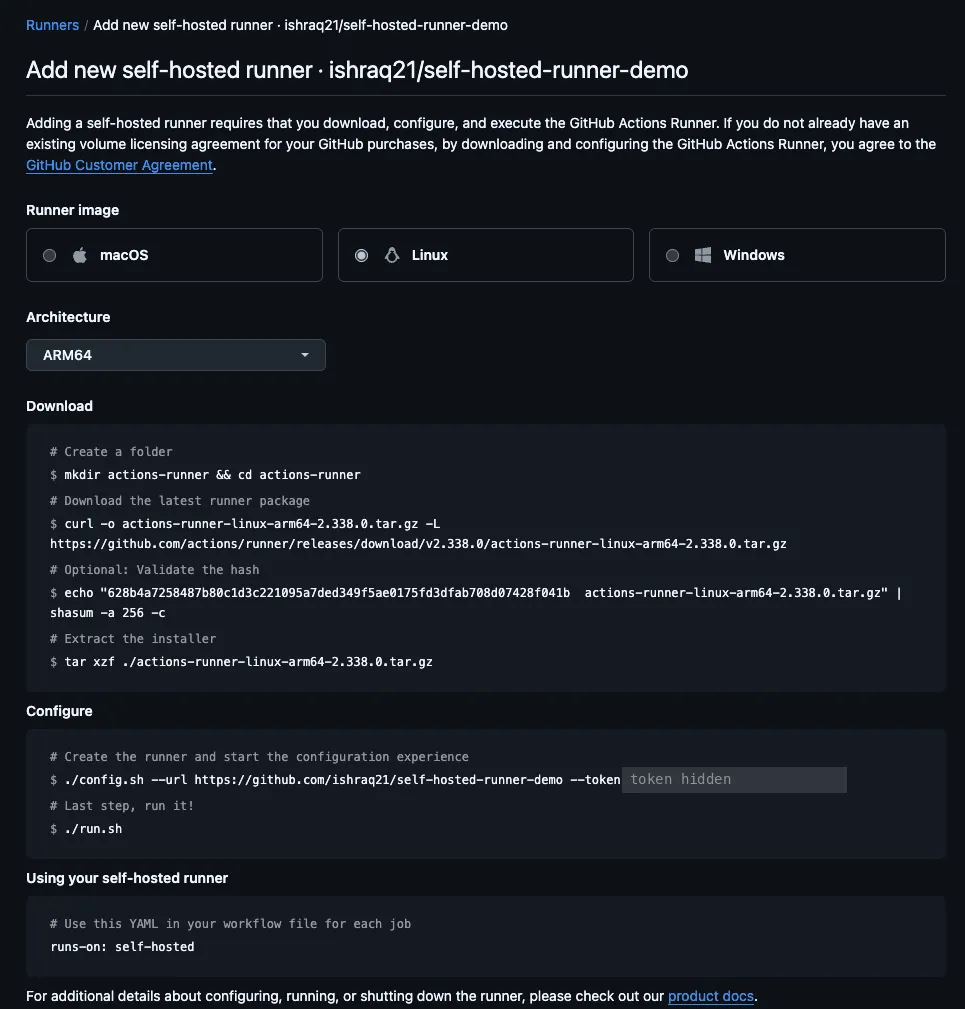
The setup page for the private demo repo. The grey box hides the live registration token.
Before you run anything you downloaded, check it against the SHA-256 checksum in the release notes. A checksum is a fingerprint of the file, so a match proves it’s the file GitHub published.
echo "475e0c149fd3b611610127b9664ba5bacf5c6928795cc448ab520bb5f324bede actions-runner.tar.gz" | sha256sum -cactions-runner.tar.gz: OKThe x64 checksum for 2.338.1 is 08e9ccb3604d2462c24b5e33604dc30810296ca15cc65f23cffd4317eb144c37. Unpack the archive.
tar xzf actions-runner.tar.gz && lsactions-runner.tar.gz
bin
config.sh
env.sh
externals
run-helper.cmd.template
run-helper.sh.template
run.sh
safe_sleep.shThe runner needs a few system libraries, and installing them takes sudo, which runner doesn’t have. Type exit to go back to your admin account. Ubuntu 26.04 locks each home folder to its owner, so cd into /home/runner fails for the admin. Give the installer its full path instead.
ls -ld /home/runner
sudo /home/runner/actions-runner/bin/installdependencies.sh
drwxr-x--- 3 runner runner 4096 Oct 25 10:34 /home/runnerThe installer ended with two lines, E: Unable to locate package libicu80 and the same for libicu79, then exited with success. It tries newer ICU versions first, and Ubuntu 26.04 ships libicu78, which it already had. Errors that exit with success are a genre of their own.
Step 4. Register the runner with a token
Registering tells GitHub this machine belongs to your repo. It needs a registration token, which expires after one hour. Copy it from the New self-hosted runner page, or ask the GitHub CLI on your laptop.
gh api -X POST repos/OWNER/REPO/actions/runners/registration-token --jq .tokenSwitch back to the runner user with sudo -iu runner and cd ~/actions-runner. Then run read -rs and paste the token. It stores the token in a variable without showing it or saving it in your shell history.
read -rs RUNNER_TOKEN
./config.sh --unattended \
  --url https://github.com/OWNER/REPO \
  --token "$RUNNER_TOKEN" \
  --name build-box-01 \
  --labels my-ci
# Authentication
√ Connected to GitHub
# Runner Registration
√ Runner successfully added
# Runner settings
√ Settings Saved.Here’s what each option does.
--unattendedskips the questions and uses the values you pass.--urlis the repo the runner serves. An organization URL makes an organization runner.--nameis what you see on GitHub. Name the machine, because “runner” tells you nothing once you have three.--labels my-ciadds a custom label. GitHub also addsself-hosted, the OS and the architecture by itself.
Use a label for the job the runner does, like my-ci, rather than the machine’s name. Then you can add or replace machines later without touching a single workflow.
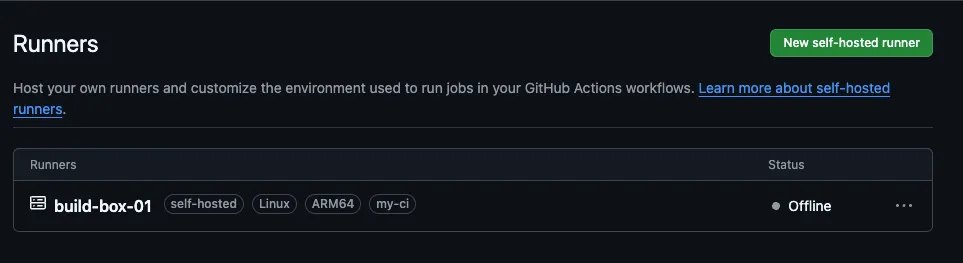
Registered but not running yet, so GitHub shows it as Offline.
Two mistakes I made on purpose to show you the messages. Running the script as root fails straight away.
sudo /home/runner/actions-runner/config.sh --url https://github.com/OWNER/REPO --token "$RUNNER_TOKEN"Must not run with sudoThe runner refuses to run as root. That’s the most security-minded thing in this whole setup until Step 10. A typo in the repo URL gets a 404.
Http response code: NotFound from 'POST https://api.github.com/actions/runner-registration' (Request Id: F326:289D96:DB512F:F0B08F:6ADDDB66)
{"message":"Not Found","documentation_url":"https://docs.github.com/rest","status":"404"}
Response status code does not indicate success: 404 (Not Found).
Step 5. Start it and run your first job
Start the runner in the foreground first, so you can watch it work.
./run.sh√ Connected to GitHub
Current runner version: '2.338.1'
2026-10-25 10:36:23Z: Listening for Jobs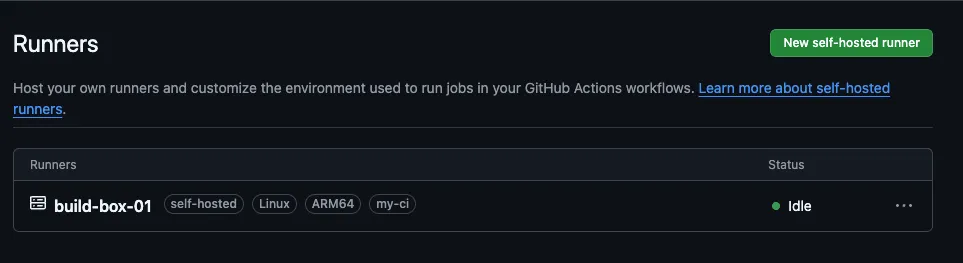
Idle means connected and waiting for a job.
Now give it a job. This workflow runs only when you click Run workflow, and it prints which machine picked it up. Save it as .github/workflows/hello.yml and push it.
name: Hello runner

on: workflow_dispatch

jobs:
  hello:
    runs-on: [self-hosted, linux, my-ci]
    steps:
      - name: Say where this job ran
        run: |
          echo "Runner name: $RUNNER_NAME"
          echo "Machine: $(hostname)"
          echo "User: $(whoami)"
          echo "Work folder: $GITHUB_WORKSPACE"
          uname -srm
runs-on lists three labels, and the job waits for a runner that has all three. $RUNNER_NAME and $GITHUB_WORKSPACE are variables the runner sets for every job. Start it from the Actions tab, or from your laptop.
gh workflow run hello.yml -R OWNER/REPOThe terminal running run.sh picks it up within seconds.
2026-10-25 10:38:38Z: Running job: hello
2026-10-25 10:38:42Z: Job hello completed with result: Succeeded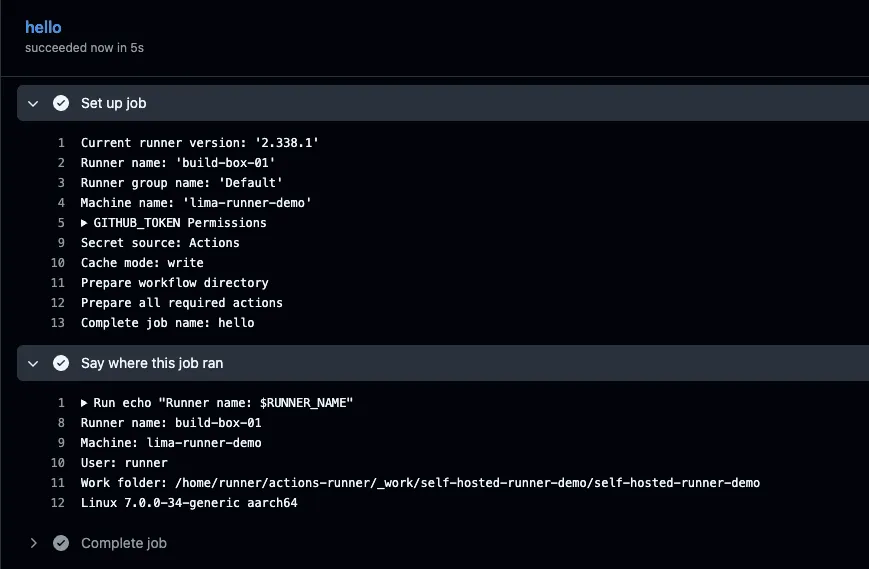
The job ran as the runner user, in a work folder inside the runner’s own directory.
Press Ctrl+C to stop the runner. The catch with run.sh is that closing the terminal, logging out or rebooting stops it too. Step 6 fixes that.
Step 6. Run it as a service that survives reboots
A service is a program that the operating system starts at boot and restarts when it crashes. On Ubuntu, systemd manages services, and the runner ships a script called svc.sh that sets one up for you. The service docs run it with sudo from the runner’s folder.
Go back to your admin account with exit. Then become root for a moment, so you can work inside the runner’s folder.
sudo -i
cd /home/runner/actions-runner
./svc.sh install runner
./svc.sh start
./svc.sh status
exit
The runner after install makes the service run as that user, not as root. The status shows the service running.
● actions.runner.Ishraq21-self-hosted-runner-demo.build-box-01.service - GitHub Actions Runner (Ishraq21-self-hosted-runner-demo.build-box-01)
     Loaded: loaded (/etc/systemd/system/actions.runner.Ishraq21-self-hosted-runner-demo.build-box-01.service; enabled; preset: enabled)
     Active: active (running) since Sun 2026-10-25 10:40:03 UTC; 97ms ago
The service name carries your owner, repo and runner name, so yours will differ. On Ubuntu, a tool called needrestart can restart services after package updates, and GitHub’s docs give one line to stop it from restarting the runner in the middle of a job.
echo '$nrconf{override_rc}{qr(^actions\.runner\..+\.service$)} = 0;' | sudo tee /etc/needrestart/conf.d/actions_runner_services.confNow prove it survives a reboot.
sudo systemctl rebootAfter the machine comes back, check the service and ask GitHub what it sees.
uptime -p
systemctl is-active 'actions.runner.*'
up 0 minutes
activegh api repos/OWNER/REPO/actions/runners --jq '.runners[] | {name, status, busy, labels: [.labels[].name]}'{"busy":false,"labels":["self-hosted","Linux","ARM64","my-ci"],"name":"build-box-01","status":"online"}Up for less than a minute and already online. That’s the whole point of Step 6.
Step 7. Install Docker for container jobs
Most Python CI needs Docker, for example to start PostgreSQL next to the tests or to build an image. GitHub’s hosted runners come with Docker installed. Yours needs it installed by you, and GitHub’s requirements say service containers and Docker container actions only work on Linux runners with Docker. If containers are new to you, my Docker tutorial for beginners covers images, volumes and Compose first.
These are the commands from Docker’s Ubuntu install guide, run from your admin account.
sudo apt install -y ca-certificates curl
sudo install -m 0755 -d /etc/apt/keyrings
sudo curl -fsSL https://download.docker.com/linux/ubuntu/gpg -o /etc/apt/keyrings/docker.asc
sudo chmod a+r /etc/apt/keyrings/docker.asc
sudo tee /etc/apt/sources.list.d/docker.sources <<EOF
Types: deb
URIs: https://download.docker.com/linux/ubuntu
Suites: $(. /etc/os-release && echo "${UBUNTU_CODENAME:-$VERSION_CODENAME}")
Components: stable
Architectures: $(dpkg --print-architecture)
Signed-By: /etc/apt/keyrings/docker.asc
EOFsudo apt update
sudo apt install -y docker-ce docker-ce-cli containerd.io docker-buildx-plugin docker-compose-plugin
sudo docker run --rm hello-worldHello from Docker!
This message shows that your installation appears to be working correctly.That gave me Docker 29.9.2. The runner user can’t use it yet. Here’s docker version from that account.
permission denied while trying to connect to the docker API at unix:///var/run/docker.sockAdd runner to the docker group, then restart the service. Group changes only reach new processes, so the restart matters.
sudo usermod -aG docker runner
sudo systemctl restart 'actions.runner.*'
From the runner account, the same check now answers.
docker version --format '{{.Server.Version}}'29.9.2Know what you just did. Docker’s own docs warn that the docker group grants root-level privileges. Adding a user to it is giving them root with extra steps, and every job runs as that user. Step 10 deals with what that means.
Step 8. Point your real CI at the runner
This is the demo’s CI workflow from the GitHub workflows guide, with two changes for a self-hosted machine. Both jobs say runs-on: [self-hosted, linux, my-ci], and the Docker job gets a unique project name per run.
name: CI

on:
  pull_request:
  push:
    branches: [main]
  workflow_dispatch:

permissions:
  contents: read

concurrency:
  group: ci-${{ github.event_name == 'pull_request' && github.ref || github.run_id }}
  cancel-in-progress: ${{ github.event_name == 'pull_request' }}

jobs:
  test:
    name: Tests (Python ${{ matrix.python-version }})
    runs-on: [self-hosted, linux, my-ci]
    timeout-minutes: 15
    strategy:
      fail-fast: false
      matrix:
        python-version: ["3.12", "3.13", "3.14"]
    services:
      postgres:
        image: postgres:18-alpine
        env:
          POSTGRES_PASSWORD: ci-password
          POSTGRES_DB: app
        ports:
          - 5432:5432
        options: >-
          --health-cmd "pg_isready -U postgres"
          --health-interval 5s
          --health-timeout 5s
          --health-retries 10
    env:
      SECRET_KEY: ci-only-not-a-real-secret
      DATABASE_URL: postgresql://postgres:ci-password@localhost:5432/app
    steps:
      - uses: actions/checkout@3d3c42e5aac5ba805825da76410c181273ba90b1  # v7.0.1
        with:
          persist-credentials: false

      - uses: actions/setup-python@6d4fd22b20465ccc0f7354476588e8df7c9ca0e0  # v7.1.0
        with:
          python-version: ${{ matrix.python-version }}
          cache: pip

      - name: Install dependencies
        run: pip install -r requirements.txt

      - name: Check for missing migrations
        run: python manage.py makemigrations --check --dry-run

      - name: Collect static files
        run: python manage.py collectstatic --noinput

      - name: Run the tests
        run: python manage.py test

  docker:
    name: Docker smoke test
    needs: test
    runs-on: [self-hosted, linux, my-ci]
    timeout-minutes: 15
    env:
      # A name per run, so leftovers from an older run can't clash with this one.
      COMPOSE_PROJECT_NAME: taskboard-ci-${{ github.run_id }}
    steps:
      - uses: actions/checkout@3d3c42e5aac5ba805825da76410c181273ba90b1  # v7.0.1
        with:
          persist-credentials: false

      - name: Write a throwaway env file
        run: |
          cat > .env <<'ENV'
          SECRET_KEY=ci-only-not-a-real-secret
          POSTGRES_PASSWORD=ci-password
          ALLOWED_HOSTS=localhost
          ENV

      - name: Build and start the stack
        run: docker compose up --build --wait --wait-timeout 120

      - name: Request the status page
        run: curl --fail --silent --show-error http://localhost:8000/ | grep "Open tasks"

      - name: Show the logs if anything failed
        if: failure()
        run: docker compose logs

      - name: Tear down
        if: always()
        run: docker compose down --volumes --rmi local
The test job runs three times, once per Python version, against a PostgreSQL service container. A service container is a database or other helper that GitHub starts in Docker next to the job. actions/setup-python downloads each Python version into the runner’s tool folder the first time and reuses it after that.
COMPOSE_PROJECT_NAME with github.run_id gives every run its own container, network and volume names. GitHub’s machines start empty for each job, so fixed names never clash there. Yours keeps whatever a failed run left behind, and the next run with the same names trips over it. The if: always() teardown runs even when a step fails.
If you skip the docker group in Step 7, every test job dies in “Initialize containers” with this.
permission denied while trying to connect to the docker API at unix:///var/run/docker.sock
##[error]Exit code 1 returned from process: file name '/usr/bin/docker', arguments 'version --format '{{.Server.APIVersion}}''.
With the group in place, the whole pipeline passed on the VM. Here’s how it compared with GitHub’s machines running nearly the same workflow in the public github-workflows-django repo, which has one extra check step.
| Run | Each test job | Whole run |
|---|---|---|
| Self-hosted, first run, nothing cached | 46 to 75 seconds | 4 minutes 37 seconds |
| Self-hosted, warm cache | 23 to 26 seconds | 2 minutes 45 seconds |
GitHub-hosted ubuntu-24.04, three recent runs |
23 to 37 seconds | 1 minute 12 seconds to 1 minute 31 seconds |
Each job was as fast or faster on the VM once the cache was warm. The whole run was slower, because one runner takes jobs one at a time while GitHub gave each Python version its own machine. In all three runs, one test job also sat for about a minute before it started, while the runner was idle. Register a second runner with the same label to run jobs in parallel.
Step 9. Switch between GitHub’s runners and yours with one variable
This is the setup I’d want for a fallback runner. Jobs use GitHub’s machines by default, and a repository variable moves every job to your runner without editing a single workflow. Replace each runs-on line with this.
runs-on: ${{ fromJSON(vars.CI_RUNS_ON || '"ubuntu-24.04"') }}vars.CI_RUNS_ON reads a repository variable. When it isn’t set, the expression falls back to the JSON string "ubuntu-24.04", so jobs go to GitHub. The single quotes around the double quotes matter, because fromJSON needs valid JSON. To switch to your runner, set the variable to a JSON list of labels.
gh variable set CI_RUNS_ON -R OWNER/REPO --body '["self-hosted","my-ci"]'
The same variable in Settings, Secrets and variables, Actions, Variables.
The next run went to build-box-01 for all four jobs. To switch back, delete the variable.
gh variable delete CI_RUNS_ON -R OWNER/REPOThree rules keep this switch from biting you.
- Paste the value, don’t type it. Broken JSON makes every job fail at startup.
- Check the runner is online before you flip it. The
gh apicommand from Step 6 shows it. Jobs for an offline runner wait in the queue, and GitHub fails them after 24 hours. - Turn the fallback machine on once in a while. GitHub removes a runner that hasn’t connected for more than 14 days, and a fallback is exactly the kind of runner that sits off for weeks.
Step 10. Lock the runner down
A self-hosted runner runs whatever code a workflow tells it to, as the runner user, on your network. GitHub’s security guide puts the difference plainly. Hosted runners are clean, disposable machines, and yours isn’t. These rules are the ones that matter for a small team.
- Private repositories only. That’s GitHub’s own advice, and Step 1 showed the warning.
- A dedicated user with no sudo. Step 2 did this. Jobs can read anything that user can read, so keep SSH keys, cloud credentials and personal files off the machine.
- Treat the docker group as root. If a job can run
docker, it can take over the machine. Use a dedicated machine or VM, and keep it away from systems you care about. - Review workflow changes. Anyone who can push a branch with a changed workflow can run code on the runner. Branch protection and a required review on
.github/workflows/close that gap. - Keep fork pull requests off. Private repos have a Run workflows from fork pull requests option under Settings, Actions, General. It was off on the demo repo, so leave it that way.
- Keep secrets in GitHub. Use Actions secrets, not files on disk, and don’t leave them in the work folder.
- Leave auto-updates on. The runner updates itself by default. If you turn that off with
--disableupdate, GitHub stops sending jobs to a runner that hasn’t updated within 30 days of a release. - Go ephemeral for anything risky. A persistent runner carries state from job to job. Register with
--ephemeraland the runner takes exactly one job, then removes itself. You then need a script to bring up a fresh one, which is why it’s an upgrade, not Step 4. If you already run Kubernetes, GitHub’s recommended way to autoscale is Actions Runner Controller, which starts ephemeral runners as jobs come in.
My demo VM had no access to the Mac’s files at all. That’s the posture to copy. The runner’s machine should be one you’d be fine wiping.
Step 11. Maintain, update and remove the runner
Where are the runner’s logs?
The service log is the first place to look. Each job shows up as a start line and a result line.
sudo journalctl -u 'actions.runner.*' --since '10 min ago' --no-pager | tail -5Oct 25 10:53:54 lima-runner-demo runsvc.sh[9059]: 2026-10-25 10:53:54Z: Job Tests (Python 3.14) completed with result: Succeeded
Oct 25 10:54:56 lima-runner-demo runsvc.sh[9059]: 2026-10-25 10:54:56Z: Running job: Tests (Python 3.13)
Oct 25 10:55:19 lima-runner-demo runsvc.sh[9059]: 2026-10-25 10:55:19Z: Job Tests (Python 3.13) completed with result: Succeeded
Oct 25 10:55:21 lima-runner-demo runsvc.sh[9059]: 2026-10-25 10:55:21Z: Running job: Docker smoke test
Oct 25 10:55:42 lima-runner-demo runsvc.sh[9059]: 2026-10-25 10:55:42Z: Job Docker smoke test completed with result: SucceededFor more detail, the runner’s _diag folder holds a Runner_*.log for the listener and a Worker_*.log for each job.
How do you keep the disk from filling up?
Check the disk and the work folder now and then.
df -h /
du -sh _work
/dev/vda1 19G 6.0G 13G 33% /
1.3G _workDocker leftovers add up too. After three CI runs, the VM had nine leftover volumes, one from each PostgreSQL service container. Pruning them freed 588 MB.
docker volume ls -q | wc -l
docker volume prune -f
9
Total reclaimed space: 588MBOld images and build cache go with a second command. Schedule both weekly with cron if the machine builds a lot. If you’d rather clean up after every job, the runner can run a script for you through the ACTIONS_RUNNER_HOOK_JOB_COMPLETED setting.
docker system prune -af --filter "until=168h"How does the runner update?
By itself. GitHub’s docs say it updates when a job is assigned, or within a week of a release if it sits idle. Keep the runner folder owned by runner so the update can write to it.
How do you remove a self-hosted runner?
Get a removal token. It’s a different token from the registration one.
gh api -X POST repos/OWNER/REPO/actions/runners/remove-token --jq .tokenGitHub’s removal doc says the remove command removes any services. On Linux, the runner disagrees.
read -rs REMOVE_TOKEN
./config.sh remove --token "$REMOVE_TOKEN"
# Runner removal
Removing service
Failed: Removing service
Uninstall service firstSo stop and uninstall the service first, as root from the runner’s folder like in Step 6, then remove the runner as the runner user.
sudo -i
cd /home/runner/actions-runner
./svc.sh stop
./svc.sh uninstall
exit
read -rs REMOVE_TOKEN
./config.sh remove --token "$REMOVE_TOKEN"√ Runner removed successfully
√ Removed .credentials
√ Removed .runnerThe runner disappears from the Runners page. If the machine is already gone, the runner’s menu on that page has a force-remove option, and GitHub cleans up a runner that has been offline for more than 14 days by itself.
How do you fix common self-hosted runner errors?
Every message in this table came up while I built the demo.
| Symptom | Cause | Fix |
|---|---|---|
| Job says “Waiting for a runner to pick up this job” | No online, idle runner has every label in runs-on, often a typo |
Compare runs-on with the labels on the Runners page |
| Runner shows Offline on the Runners page | The service isn’t running, or the machine is asleep or off the network | Run systemctl is-active 'actions.runner.*' on the machine, then read the service log from Step 11 |
Must not run with sudo |
You ran config.sh as root |
Run it as the runner user |
NotFound 404 from runner-registration |
The repo URL is wrong | Copy the URL from the repo page |
cd: /home/runner/actions-runner: Permission denied |
Ubuntu locks home folders to their owner | Use the full path with sudo, or sudo -i first |
permission denied while trying to connect to the docker API |
The runner user isn’t in the docker group | usermod -aG docker runner, then restart the service |
Uninstall service first |
You tried to remove a runner that still has a service | svc.sh stop and svc.sh uninstall, then remove |
| “The job was not started because recent account payments have failed” | No included minutes or budget left for GitHub’s runners on a private repo | Point CI_RUNS_ON at your runner, or add a budget |
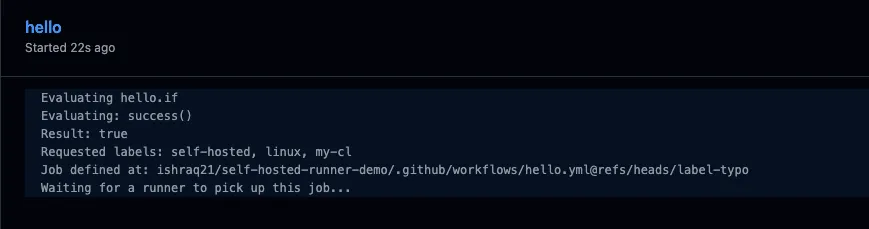
One letter off. The runner’s label is my-ci and the workflow asked for my-cl, so the job waits for a runner that will never exist.
A job stuck like that doesn’t fail fast. GitHub’s docs say it stays queued until a matching runner comes online, and fails after 24 hours. Cancel it, fix the label, and run it again.
What else should you know about self-hosted runners?
Is a GitHub Actions self-hosted runner free?
Yes for now. GitHub’s billing docs say Actions usage is free for self-hosted runners. GitHub announced a per-minute platform charge for self-hosted runners in December 2025, then postponed it to re-evaluate. You still pay for the machine, the power and your time.
How many jobs can one runner run at once?
One. To run jobs in parallel, register more runners with the same label, each in its own folder with its own name and its own token. Never copy a configured runner folder, because its credentials belong to one registration.
Can I run the runner inside WSL?
Yes, that’s where mine lives. svc.sh needs systemd, which Microsoft’s WSL docs say is the default for the current Ubuntu that wsl --install sets up. The runner is only online while Windows is awake, and my WSL guide covers installing WSL itself.
Can I use Windows or macOS instead of Ubuntu?
Yes. GitHub supports the runner on 64-bit Windows 10 and 11, Windows Server 2016 to 2022, macOS 11 or later, and most current Linux distributions. The New self-hosted runner page shows the commands for each one. This guide only tested Ubuntu, and service containers need a Linux runner, so Steps 7 and 8 are Linux only.
Does the runner work on a Raspberry Pi or other ARM machine?
Yes. Use the arm64 package, or arm for 32-bit ARM. The demo in this guide ran on ARM64 the whole way through, Docker and PostgreSQL included.
What would you run on your own runner first, the CI that ate your free minutes or the deploy that needs to reach your private network?