How to Run a Local LLM on Your Mac in Under 10 Minutes (Step by Step)
A local LLM is an AI model that runs on your own Mac instead of someone else’s server. It’s free, it works offline, and nothing you paste into it leaves the machine. With LM Studio, the setup takes one download and a few clicks.
The part most guides get wrong is picking the model. Pick it by how much memory your Mac has, not by how fast it is or how high it scores. I learned that the slow way.
I wanted a model for boring chores. Cleaning up Markdown, renaming files, pulling a date or a total out of a document. That work doesn’t need Claude, and every chore I hand to Claude eats into the same limit my real work needs. I covered that limit math in my Claude Code cost post, and where my tokens actually went in my token usage case study.
Here’s the full setup on a Mac Studio with an M2 Max and 32GB of memory. Which model fits your Mac, how to install it, the settings that matter, how to let it touch files and PDFs, and what it still can’t do. I ran every step below in October 2026 on LM Studio 0.4.25.
Key takeaways
- A local LLM needs an Apple Silicon Mac. LM Studio recommends 16GB of memory or more.
- Pick the model by memory. It shares that memory with macOS and every app you have open.
- Qwen3.5 9B (about 7GB) is a good chore model on 16GB and up. Turn its thinking off for chores.
- MCP plug-ins let the model read, move and rename files in folders you choose.
- PDFs go through a converter first. The model cleans up after it.
What do you need to run a local LLM on a Mac?
Less than you think, with one hard rule. It has to be an Apple Silicon Mac.
LM Studio’s system requirements list Apple Silicon (M1, M2, M3, M4) and macOS 14.0 or newer. Intel Macs aren’t supported. It recommends 16GB of memory or more, and says 8GB Macs can still work if you “stick to smaller models and modest context sizes.”
You also need disk space for the models. A small one is 3 to 7GB, a big one is 20GB and up. Disk is cheap, so download a few. Memory is the expensive part, so load one at a time.
LM Studio itself is free, including at work. It dropped the commercial license requirement in July 2025.
On Apple Silicon, the CPU and GPU share one pool of memory, called unified memory. That’s why a Mac can run models a gaming laptop with the same RAM can’t. It’s also why a big model can choke the rest of your Mac. Same pool, and the model doesn’t care about your 40 browser tabs.
Which local LLM fits your Mac?
Start with this table. The sizes are what LM Studio’s model catalog showed for each download in October 2026. New models land every few weeks, so check the catalog for anything newer. A model needs more memory than its download size once it’s running, because it also holds your conversation.
| Your Mac’s memory | Models that fit | Download size | Reads images |
|---|---|---|---|
| 8GB | Qwen3.5 4B | 3.75GB | Yes |
| 8GB | Gemma 4 E4B | 5.9GB | Yes |
| 16GB | Qwen3.5 9B | 7.0GB | Yes |
| 16GB | Ministral 3 14B | 9.5GB | Yes |
| 16GB | gpt-oss 20B | 12GB | No |
| 24GB | Gemma 4 26B A4B | 15.6GB | Yes |
| 24GB | Qwen3.8 27B | 16.1GB | Yes |
| 32GB | Gemma 4 31B | 19.0GB | Yes |
| 32GB | Qwen3.6 35B A3B | 20.4GB | Yes |
| 64GB | Qwen3-Coder-Next 80B | 42GB | No |
| 96 to 128GB | gpt-oss 120B | 65GB | No |
A rough rule if a model isn’t in the table. At 4-bit, the weights take about half a gigabyte per billion parameters. Apple’s own Llama 3.1 8B write-up shrank a 16GB model to 4.2GB that way.
Then add memory for the conversation, which Apple’s same post puts at about 1GB for an 8B model at 8,000 tokens. Then leave room for macOS and your apps. That’s my rule of thumb from Apple’s numbers, not an official one.
LM Studio will also do the math for you. lms load --estimate-only prints a memory estimate without loading anything (more on lms in Step 7).
What “no lag” really meant
My first pick was Qwen3.6 35B A3B. It’s a mixture-of-experts model, which means it has 35 billion parameters but only about 3 billion work on each word. Big brain, light footprint. On paper, perfect.
In practice it took about 20GB of my 32GB. That left 12GB for macOS, the browser, Claude and Codex. My whole Mac slowed down.
That’s when I figured out what I actually meant by “no lag.” Not slow answers. A slow Mac. When a model eats most of your memory, macOS starts swapping to disk and everything stutters. Claude and Codex run in the cloud, so they weren’t the problem. The local model’s memory was.
So I asked the wrong question. “What’s the best model that fits?” gets you a model that technically fits and makes your Mac miserable. “What fits while leaving room for everything else I run?” got me Qwen3.5 9B.
Also, the speed numbers you see online are usually from much bigger Macs. Find numbers for your chip, or test it yourself.
Step 1. Install LM Studio
LM Studio is a free desktop app that downloads and runs local models, with a chat window on top. It’s the easiest way to start on a Mac.
- Go to lmstudio.ai/download and download the Mac version (Apple Silicon).
- Drag it into Applications and open it.

The setup screens that follow offer a starter model. You can skip it, since you’ll pick one in Step 2. One of the advanced settings, “Start local LLM service on login,” was already switched on in my install. Turn it off if you only want LM Studio running when you open it.
LM Studio has two modes, User and Developer. User shows the chat and configures everything for you. Developer shows every setting. You’ll want Developer for the steps below. Turn it on in Settings > Developer.
You may also see LM Studio Bionic on their homepage. That’s a separate agent app. You don’t need it for anything here.
Step 2. Download a model
Open Discover, LM Studio’s model search, with its icon in the left sidebar. In version 0.4.25, ⌘2 opens the Developer tab, not Discover. Search for qwen3.5 9b.
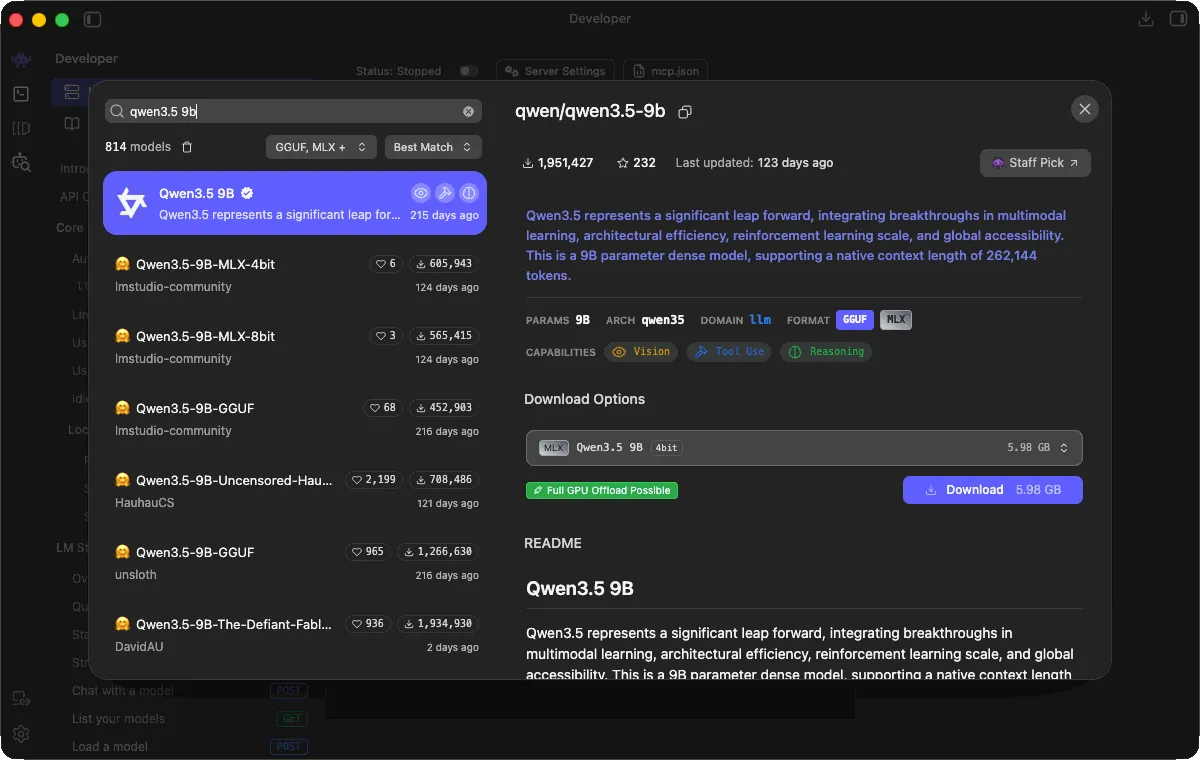
The 4-bit MLX build was a 5.98GB download, a little smaller than the catalog figure in the table above.
You’ll see two formats. MLX is Apple’s own engine for its chips. GGUF is the format for llama.cpp, the engine most other local tools use. Both run on a Mac. Pick MLX if it’s offered.
You’ll also see options like 4-bit, 6-bit and 8-bit. That’s quantization, which squeezes the model by storing each number with fewer bits. LM Studio’s download guide says to choose 4-bit or higher. 4-bit is the usual pick. It’s the smallest that still holds up.
Prefer the terminal? Once lms is set up (Step 7), lms get downloads models too.
Step 3. Load it and set it up for chores
Go to the Chat tab, click the model loader at the top, and pick Qwen3.5 9B. Before you load it, open its settings.
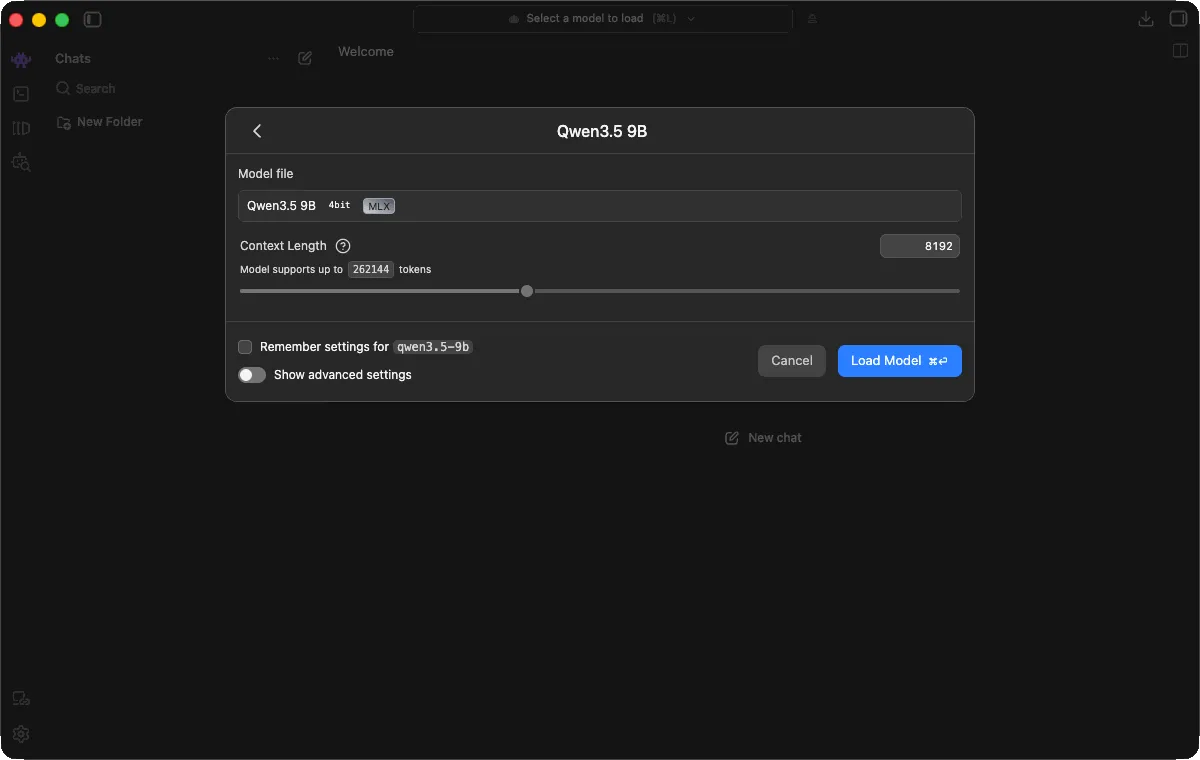
If the settings don’t show up before loading, turn on “Manually choose model load parameters” in the loader. Two settings matter.
Context length. That’s how much text the model can hold at once, your messages plus its answers. Longer context uses more memory. The app defaulted to 8,192 tokens, even though the model supports 262,144. For chores, that default is fine. Raise it only if you feed it long documents.
Thinking. Qwen3.5 thinks by default. It writes out hidden reasoning before it answers. Great for a hard problem. A waste of time when the job is renaming IMG_4821.jpeg. Once the model is loaded, open Model Parameters in the right sidebar, find “Enable Thinking” under Custom Fields, and switch it off.
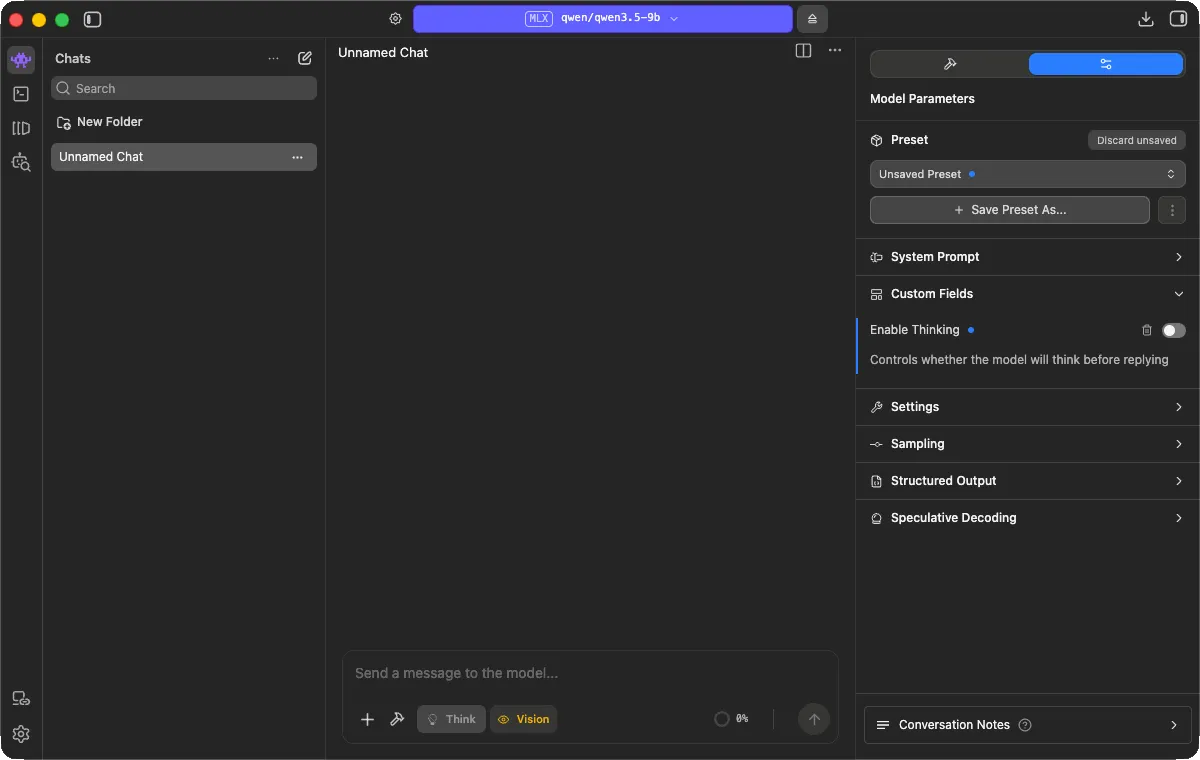
Now give it a chore. I pasted a messy Markdown file and asked it to clean up the headings, lists and spacing without dropping anything.
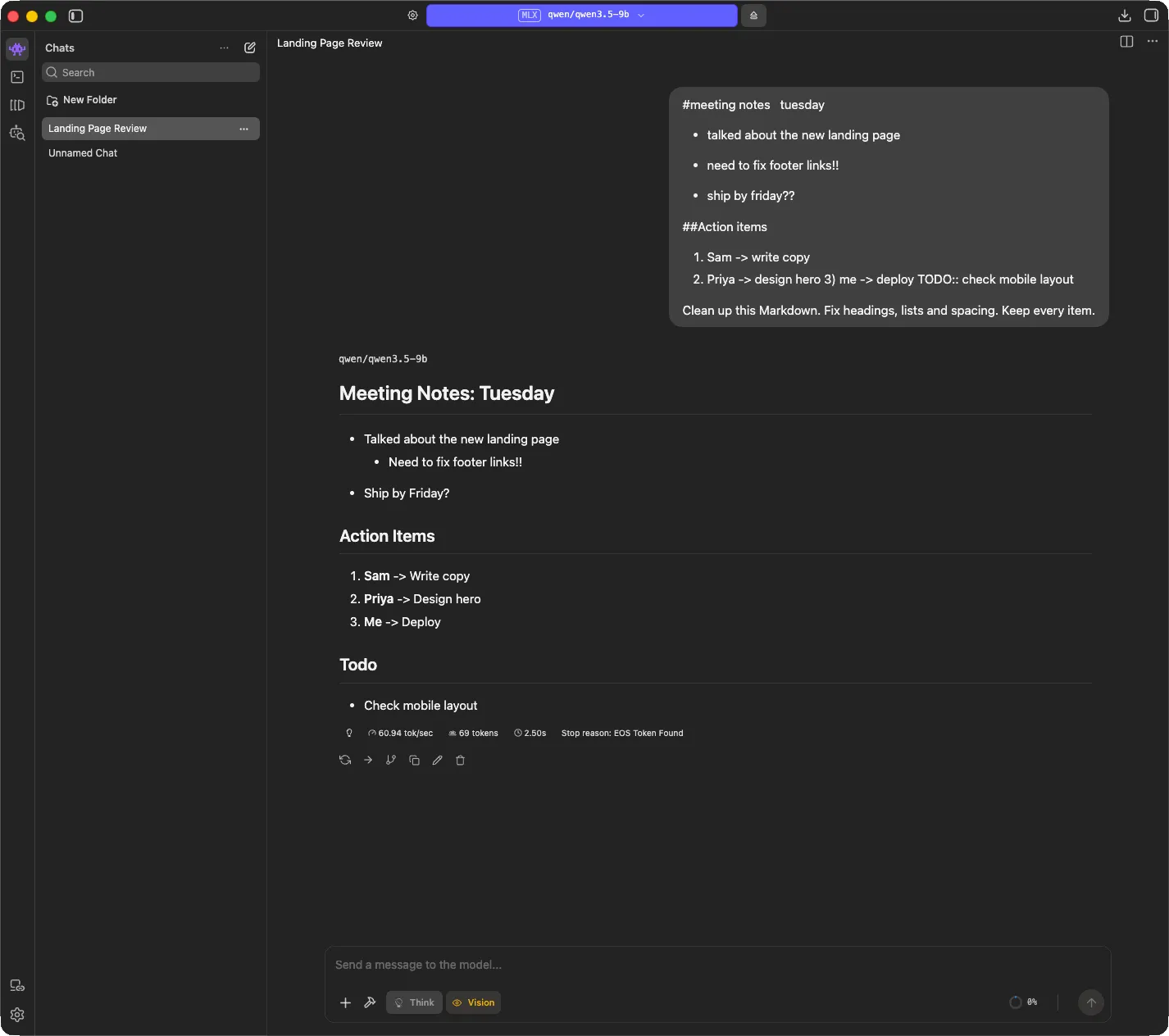
The notes are demo data. It started answering after 2.5 seconds, wrote the 69-token cleanup at 60.94 tokens per second, and kept every item. Read it anyway. It quietly turned “ship by friday??” into “Ship by Friday?” and tucked one bullet under another. Small edits, but they’re edits you didn’t ask for.
It reads images too. Attach a screenshot to your message and ask what’s in it.
Step 4. Watch memory pressure, not speed
This is the check I should have run before I blamed the model. Open Activity Monitor, click the Memory tab, and look at the Memory Pressure graph at the bottom.
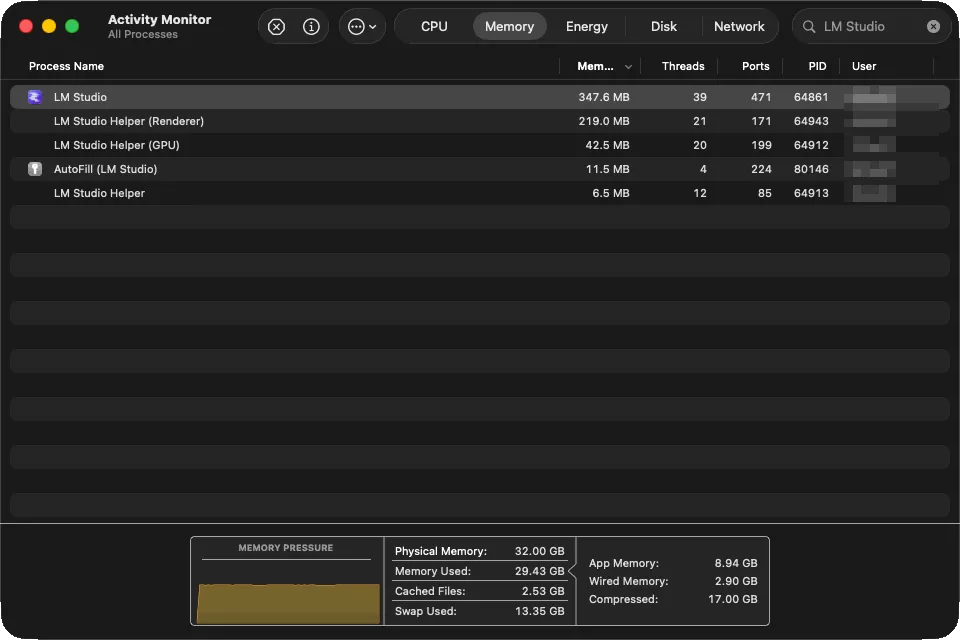
Two things stand out in that screenshot. LM Studio’s own processes show only a few hundred megabytes, even with a 6GB model loaded, so don’t judge a model by its row in the list. And the Mac was already swapping 13GB with my usual apps open in the background. That’s why the graph matters more than any single number.
Apple’s Activity Monitor guide explains the colors.
- Green means “your computer is using all of its RAM efficiently.”
- Yellow means “your computer might eventually need more RAM.”
- Red means “your computer needs more RAM.”
Mine was yellow in that screenshot, with Docker, VS Code and Chrome open next to the model. Load the model, open the apps you normally work in, and watch it. If it goes yellow or red, close what you don’t need, then pick a smaller model. Your Mac was never going to win that fight.
One model at a time. Unload one before you load the next.
Step 5. Give it hands with MCP
On its own, a model only reads and writes text. It can’t rename a file, open a folder or read a web page. MCP fixes that.
The Model Context Protocol is “an open-source standard for connecting AI applications to external systems.” Think of it as a plug. Each MCP server gives the model a set of tools, and LM Studio has supported MCP since version 0.3.17.
I use two servers.
- Filesystem reads, moves and renames files, locked to folders you choose.
- Fetch reads web pages and turns them into text.
Filesystem runs with npx, which comes with Node.js. Fetch runs with uvx, which comes with uv. Install uv with this.
curl -LsSf https://astral.sh/uv/install.sh | shIn LM Studio, open the Integrations tab in the right sidebar (the wrench icon), then Install > Edit mcp.json. Paste this, with your own folder path.
{
  "mcpServers": {
    "filesystem": {
      "command": "npx",
      "args": ["-y", "@modelcontextprotocol/server-filesystem", "/Users/you/Desktop/local-llm-demo"]
    },
    "fetch": {
      "command": "uvx",
      "args": ["mcp-server-fetch"]
    }
  }
}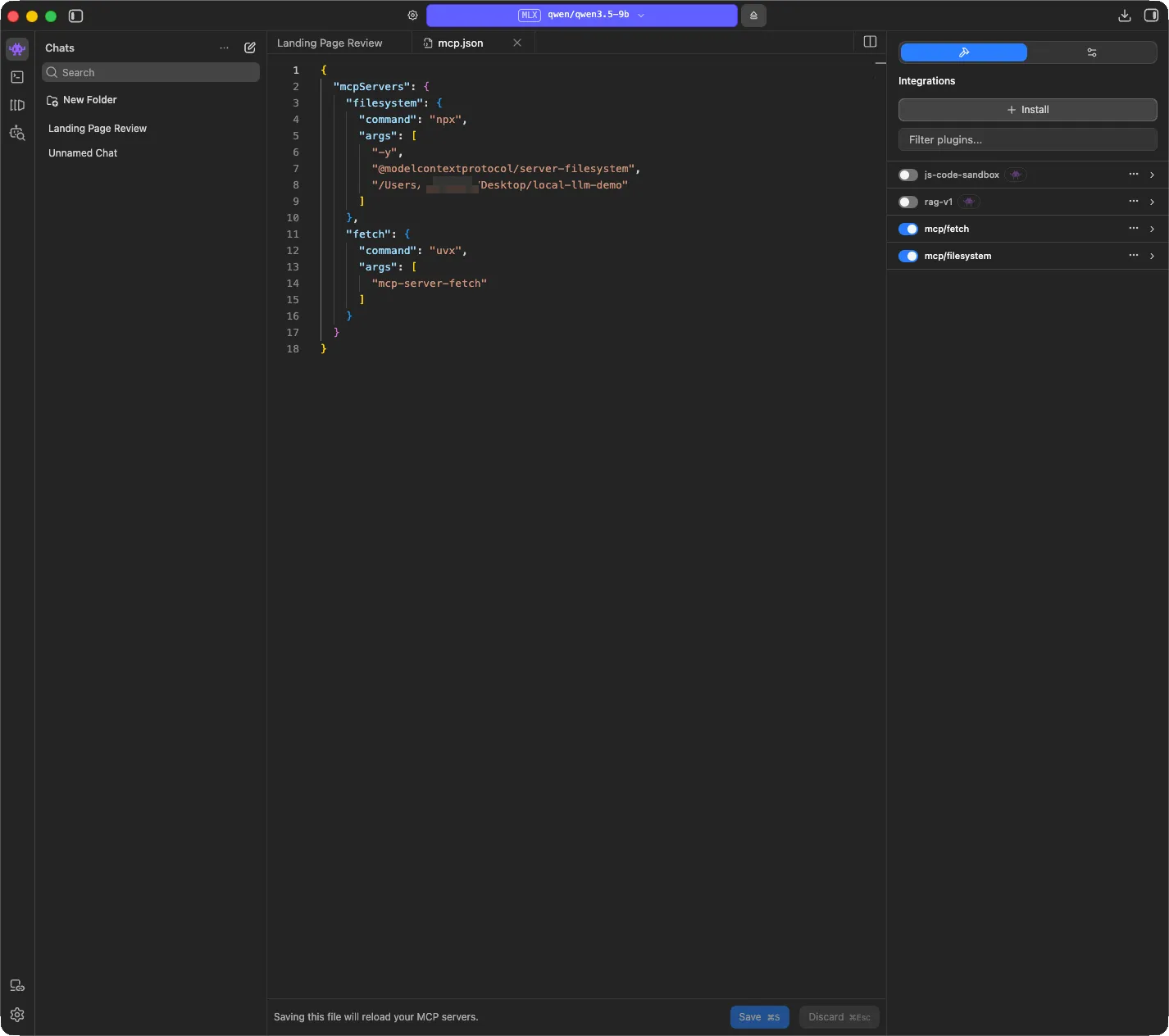
LM Studio reformats the file after you save, one argument per line. Same content. Both servers then show up under Integrations with a switch each.
The folder path is the lock. The filesystem server only works inside the folders you list. Give it a demo folder, not your home folder.
Now ask it to do something. I pointed it at a folder of badly named files and asked it to rename each one to a clear, lowercase name based on what’s inside.
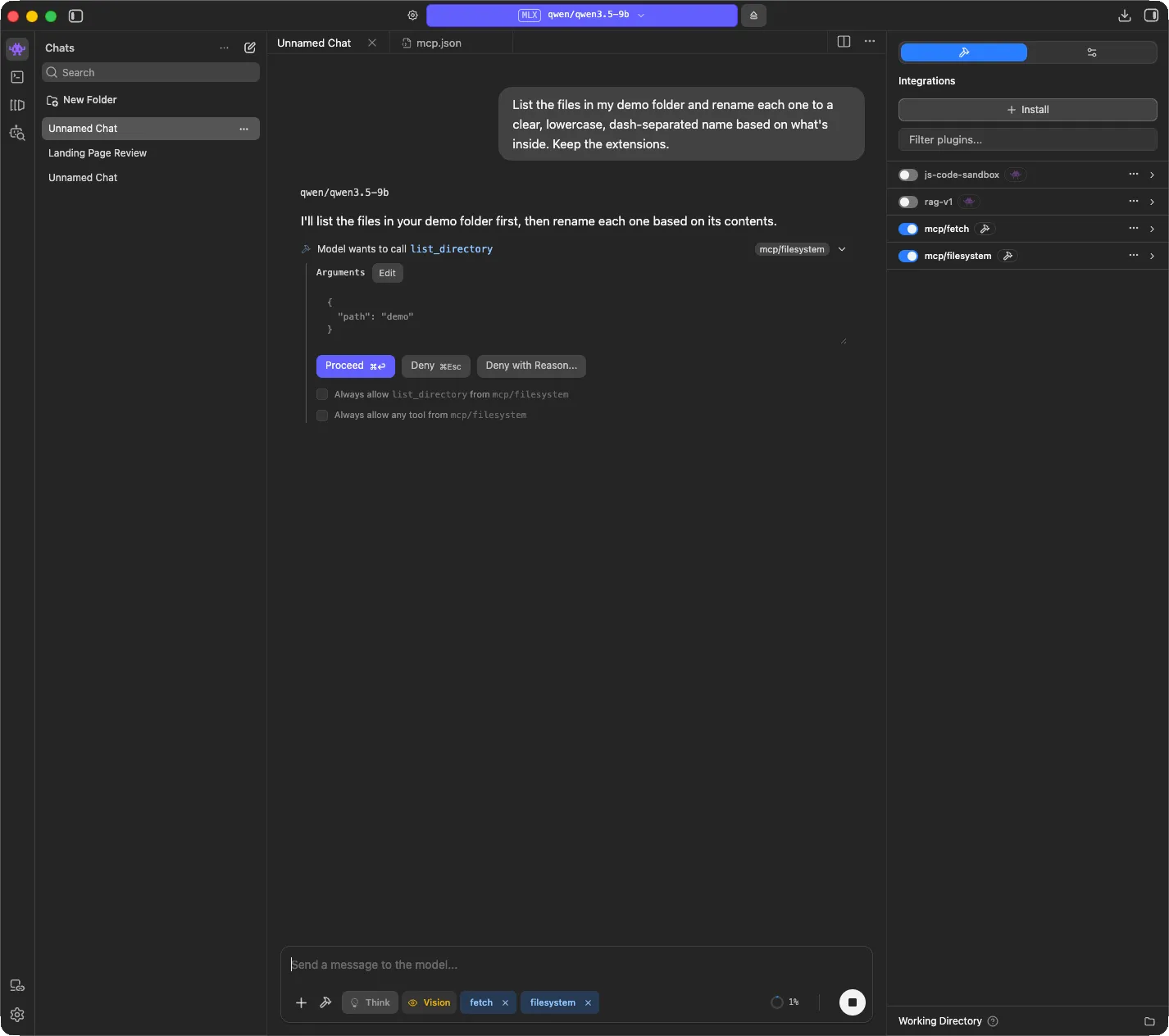
LM Studio asks before every tool call. You see exactly what the model wants to run and with which arguments. Proceed allows that one call. The two “Always allow” boxes skip the question for that tool, or for every tool on that server. Leave them unticked until you trust it.
Look at the arguments in that screenshot. The model asked for a folder called demo, which is not the path I gave the server. That’s the confirm screen earning its keep. You can hit Edit and fix the path before it runs.
The rename never finished, and not because of the model. Right after the first file call, macOS popped up a permission prompt, most likely asking whether the server could touch the Desktop folder. Until someone answered it, every file call timed out with MCP error -32001: Request timed out. If your file calls time out, look for that prompt, or keep the demo folder somewhere outside Desktop, Documents and Downloads.
Fetch works the same way. Give it a URL and ask for a summary. It’s the one tool here that goes online. The model stays on your Mac, but the request goes out to that site.
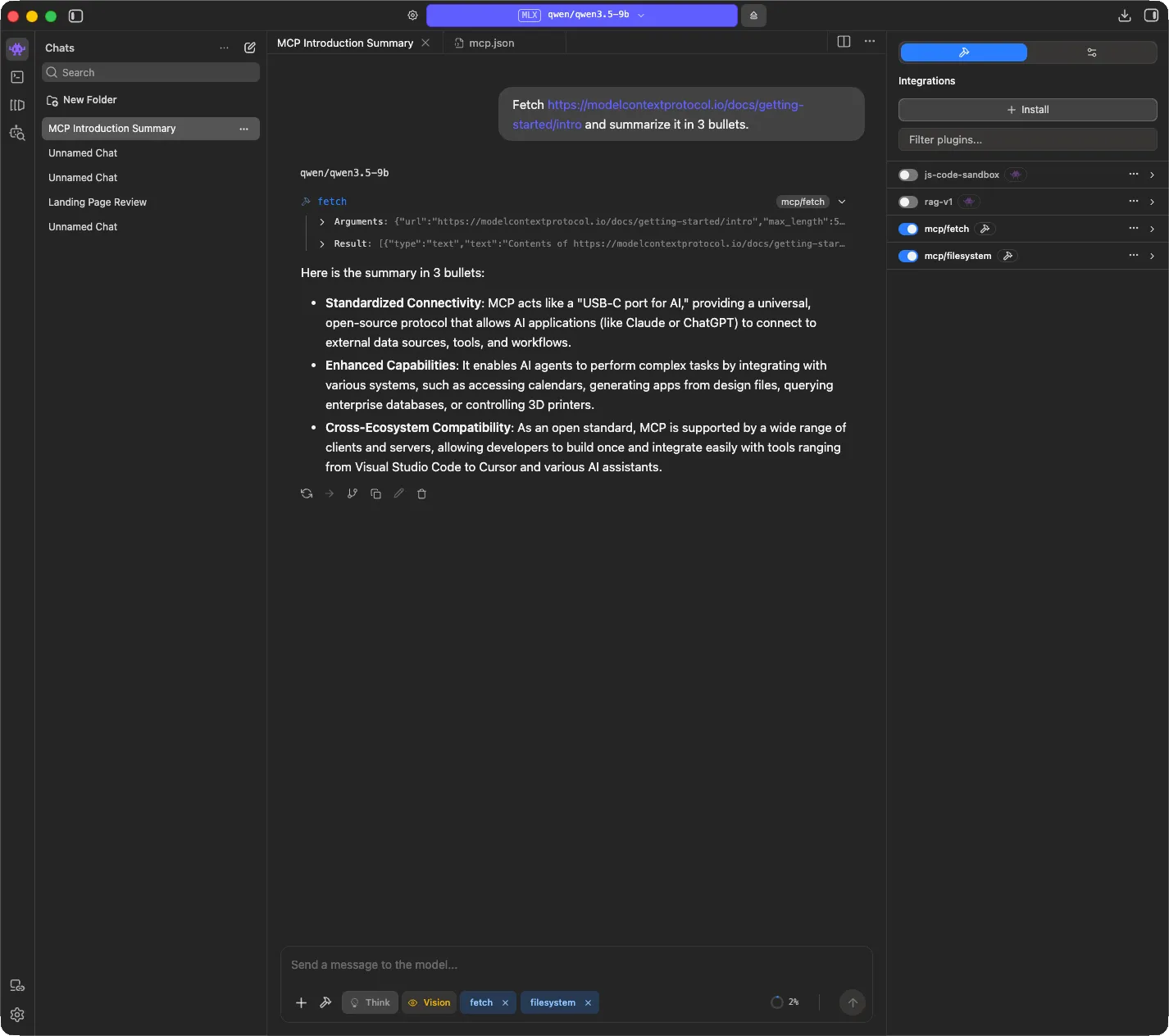
One fetch call and three accurate bullets, including the page’s own comparison of MCP to a USB-C port.
Two warnings from LM Studio’s MCP docs worth repeating. “Never install MCPs from untrusted sources.” An MCP server can run code, read your files and use your network. And some servers built for Claude or ChatGPT send so much text that they swamp a small local model.
Small models also fumble tool calls. LM Studio’s tool use docs say “smaller models and models that were not trained for tool use may output improperly formatted tool calls.” Even this short test got the folder path wrong on the first call. Ten calls, watch each one. Two hundred, expect trouble.
Step 6. Turn PDFs into text the model can read
Don’t make a chat model read a PDF. Convert it first, then let the model clean up.
For normal PDFs, where you can select the text, use Docling. It’s a free, open source converter that started at IBM Research, and it runs locally.
You don’t need to install it. With uv from Step 5, this runs it on a PDF and writes Markdown to a folder called out.
uvx docling convert sample-invoice.pdf --to md --output outThe very first time, uv spent about two and a half minutes downloading Docling. The first conversion then took 87 seconds, because Docling downloads its layout models once. After that, the whole command took about 9 seconds. Here’s what it made from a demo invoice.
INVOICE #1042 Acme Demo Supply Co. (demo data) Date: 2026-09-30 Bill to: Example Customer LLC

Item Qty Price Widget, blue 3 12.00 Widget, red 2 15.50 Shipping 1 8.00

Total due: 75.00 USD Due by: 2026-10-30
Every word is there, and the table got flattened into one line. That’s normal for a simple PDF, and it’s exactly the mess a chore model is good at. I gave that text to Qwen3.5 9B and asked for the line items as a table, plus the invoice number, due date and total.
### Invoice Details

*   **Invoice Number:** 1042
*   **Due Date:** 2026-10-30
*   **Total:** 75.00 USD

### Line Items

| Item | Qty | Price |
| :--- | :--- | :--- |
| Widget, blue | 3 | 12.00 |
| Widget, red | 2 | 15.50 |
| Shipping | 1 | 8.00 |
All correct. The converter does the reading. The model does the judgment calls.
For scans and photos of documents, you need OCR, a model that reads text out of images. LM Studio’s catalog has olmOCR 2 from Allen AI. Load it, drag in the scan, and ask for the text. I asked it to “Extract all the text from this invoice as Markdown” on a scanned copy of the same demo invoice.
INVOICE #1042
Acme Demo Supply Co. (demo data)
Date: 2026-09-30
Bill to: Example Customer LLC

Item        Qty   Price
Widget, blue    3   12.00
Widget, red     2   15.50
Shipping        1    8.00

Total due: 75.00 USD
Due by: 2026-10-30
Word for word. Qwen3.5 9B read the same scan correctly too, since it handles images.
One trap cost me a few failed runs first. The demo scan was a PNG with a transparent background, which reads as black text on a black page. olmOCR either found no text or got stuck printing zeros, and Qwen called the image “completely blank.” Same file on a white background, perfect read. If a scan comes back blank or as nonsense, check for transparency before you blame the model.
Step 7. Use it from the terminal (optional)
LM Studio ships with a command-line tool called lms. Open LM Studio once first, then these work in Terminal.
lms ls lists what you’ve downloaded, and lms ps shows what’s loaded right now.
$ lms ls

You have 3 models, taking up 12.10 GB of disk space.

LLM                                PARAMS    ARCH       SIZE       DEVICE
allenai/olmocr-2-7b (1 variant)    7B        qwen2vl    6.04 GB    Local
qwen/qwen3.5-9b (1 variant)        9B        qwen3_5    5.98 GB    Local     ✓ LOADED

EMBEDDING                               PARAMS    ARCH          SIZE        DEVICE
text-embedding-nomic-embed-text-v1.5              Nomic BERT    84.11 MB    Local

$ lms ps

IDENTIFIER         MODEL              STATUS    SIZE       CONTEXT    PARALLEL    DEVICE    TTL
qwen/qwen3.5-9b    qwen/qwen3.5-9b    IDLE      5.98 GB    165120     4           Local
Check the CONTEXT column. I loaded Qwen with lms load qwen/qwen3.5-9b -y, and it came up with a 165,120-token context, not the 8,192 the app picked. More context means more memory. Set it yourself with --context-length.
lms load qwen/qwen3.5-9b --context-length 8192LM Studio can also run a local server that speaks the same API as OpenAI. Turn it on in the Developer tab, or run lms server start. It listens on localhost:1234, so any script or app that works with OpenAI’s API can point at your Mac instead.
$ curl http://localhost:1234/v1/models
{
  "data": [
    {
      "id": "qwen/qwen3.5-9b",
      "object": "model",
      "owned_by": "organization_owner"
    },
    {
      "id": "allenai/olmocr-2-7b",
      "object": "model",
      "owned_by": "organization_owner"
    },
    {
      "id": "text-embedding-nomic-embed-text-v1.5",
      "object": "model",
      "owned_by": "organization_owner"
    }
  ],
  "object": "list"
}
One thing to know if you script it. The “Enable Thinking” switch flipped in the chat in Step 3 didn’t apply to API calls in my test. Qwen still wrote 1,305 tokens of hidden reasoning before a short invoice extraction.
How to remove LM Studio from your Mac
Dragging the app to the Trash isn’t enough. The models live in a hidden folder, and that’s where the space goes. Mine held 13GB.
Quit LM Studio first. Its background service kept running after I quit it, so check Activity Monitor and quit anything named LM Studio. Then run this.
rm -rf "/Applications/LM Studio.app" ~/.lmstudio "$HOME/Library/Application Support/LM Studio"Last, open ~/.zshrc and delete the block from # Added by LM Studio CLI (lms) to # End of LM Studio CLI section. It added the same block to ~/.bash_profile and ~/.profile.
What a local LLM still can’t do
A 9B model is not Claude. It’s not even close, and it doesn’t pretend to be. It just spells the name wrong.
Mine kept calling Claude “Clause.” Which tells you everything about trusting it with names, numbers and anything else that has to be exactly right.
In the tests for this post, Qwen3.5 9B handled every one of these.
- cleaning up Markdown and reformatting text
- pulling fields out of a document
- reading a scanned page
- short summaries of a web page
They struggle with these.
- messy scans and handwriting
- long documents
- exact numbers you can’t afford to get wrong
- hard reasoning
- long chains of tool calls
So the split is simple. Chores go local. Anything that needs a real brain still goes to Claude.
Other ways to run a local LLM on a Mac
LM Studio is the easiest start, not the only one. All four of these are free and open source.
| Tool | What it is | Pick it if |
|---|---|---|
| Ollama | A model runner with a Mac app and a command line | you want a simple CLI and lots of integrations |
| llama.cpp | The engine under many local tools | you want full control from the terminal |
| Jan | A ChatGPT-style app that runs offline | you want an open source chat app |
| MLX-LM | Apple’s Python package for running models with MLX | you want to script it in Python |
Whichever you pick, the rule from the table still holds. Memory first.
What’s the most boring chore you’re still paying a frontier model to do?